Shopify Integration Guide
This guide shows you how to connect Libers Suite with your Shopify store and optimize your products for AI search engines.
Step 1: Install App from Shopify App Store
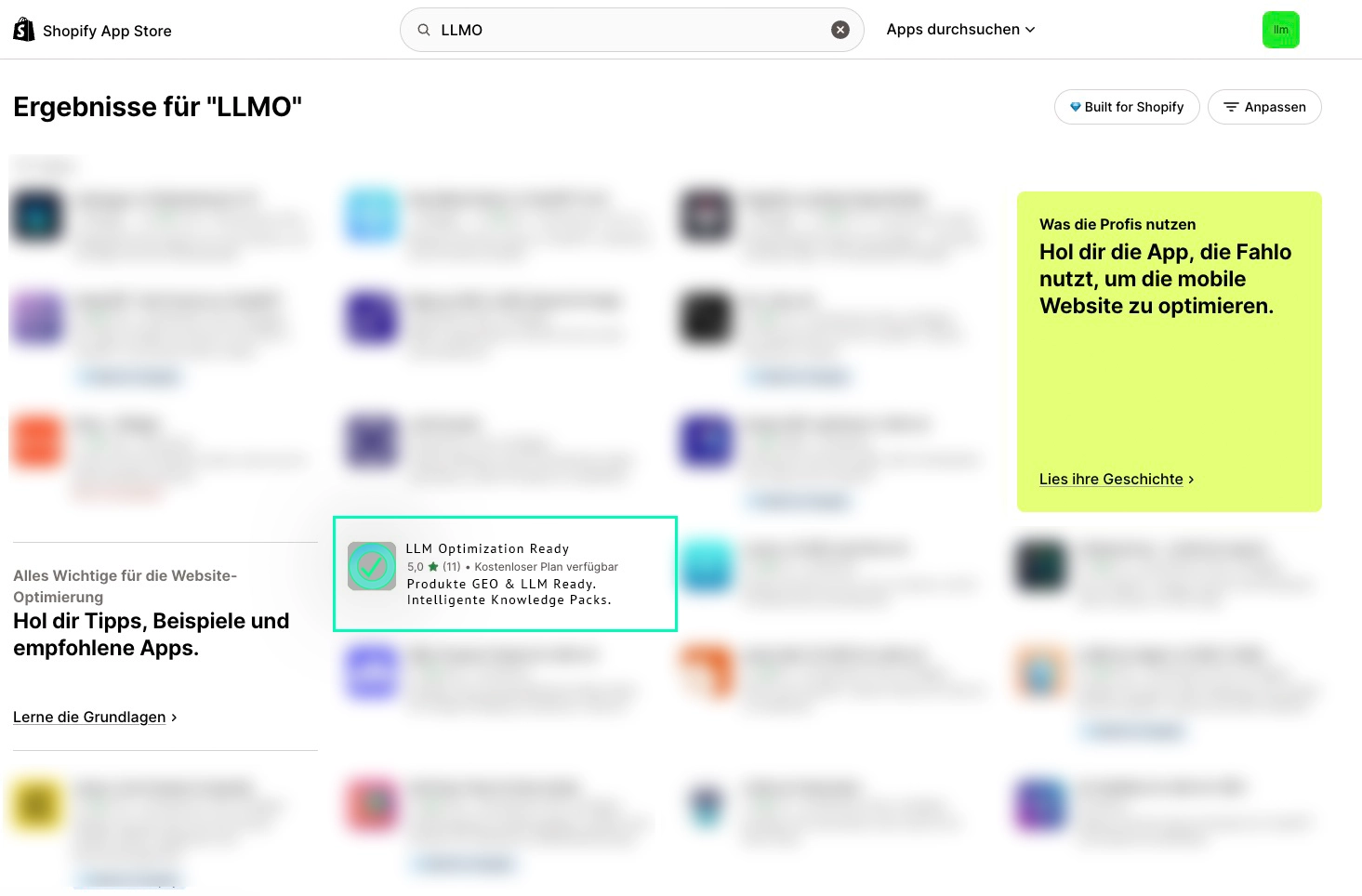
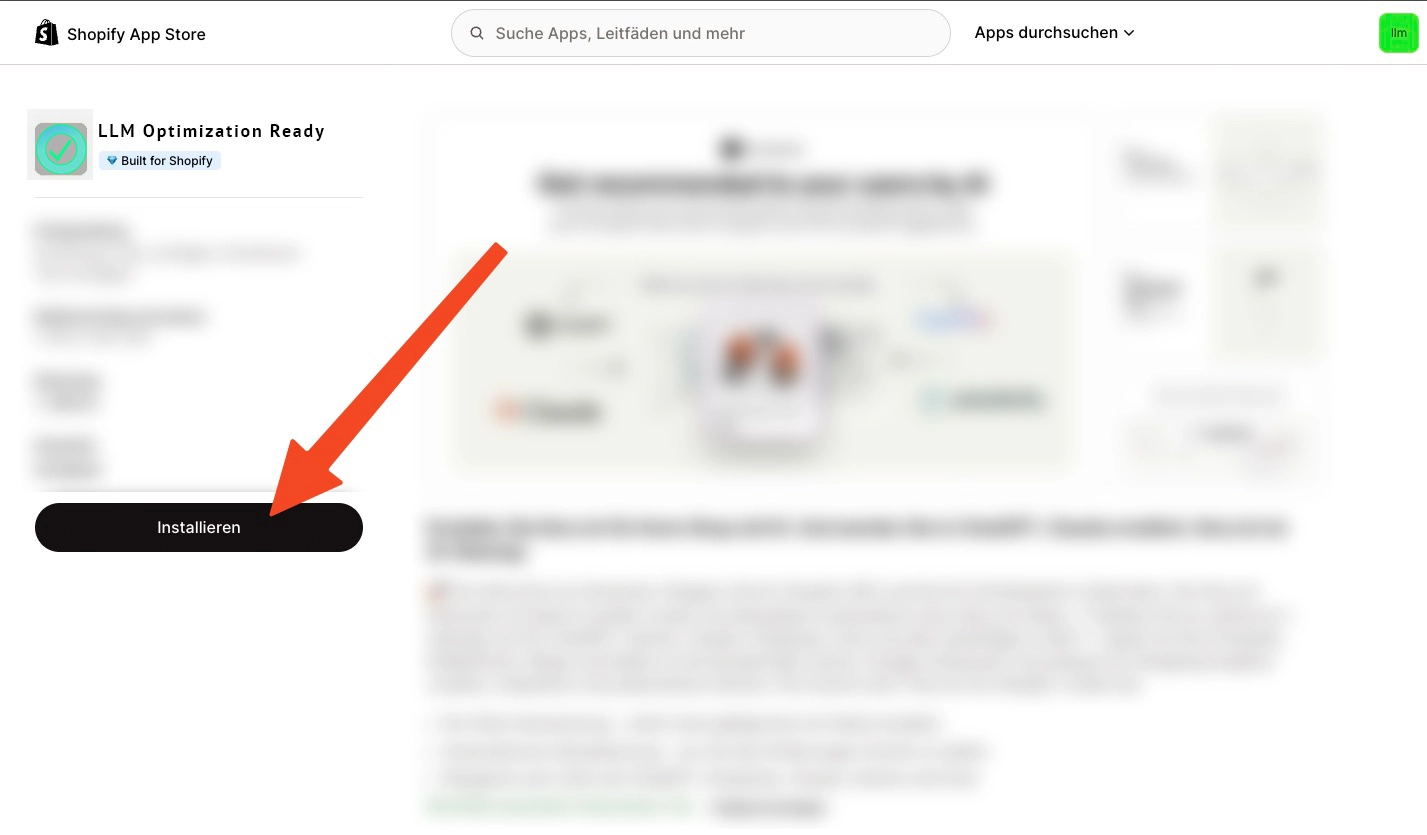
Find Libers Suite in the Shopify App Store and install the app with one click.
Step 2: Grant Permissions
Libers Suite needs access to your product data for AI optimization.
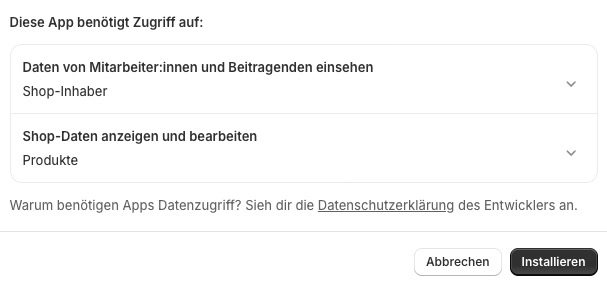
Required Permissions:
Step 3: Activate Theme Extension (CRITICAL)
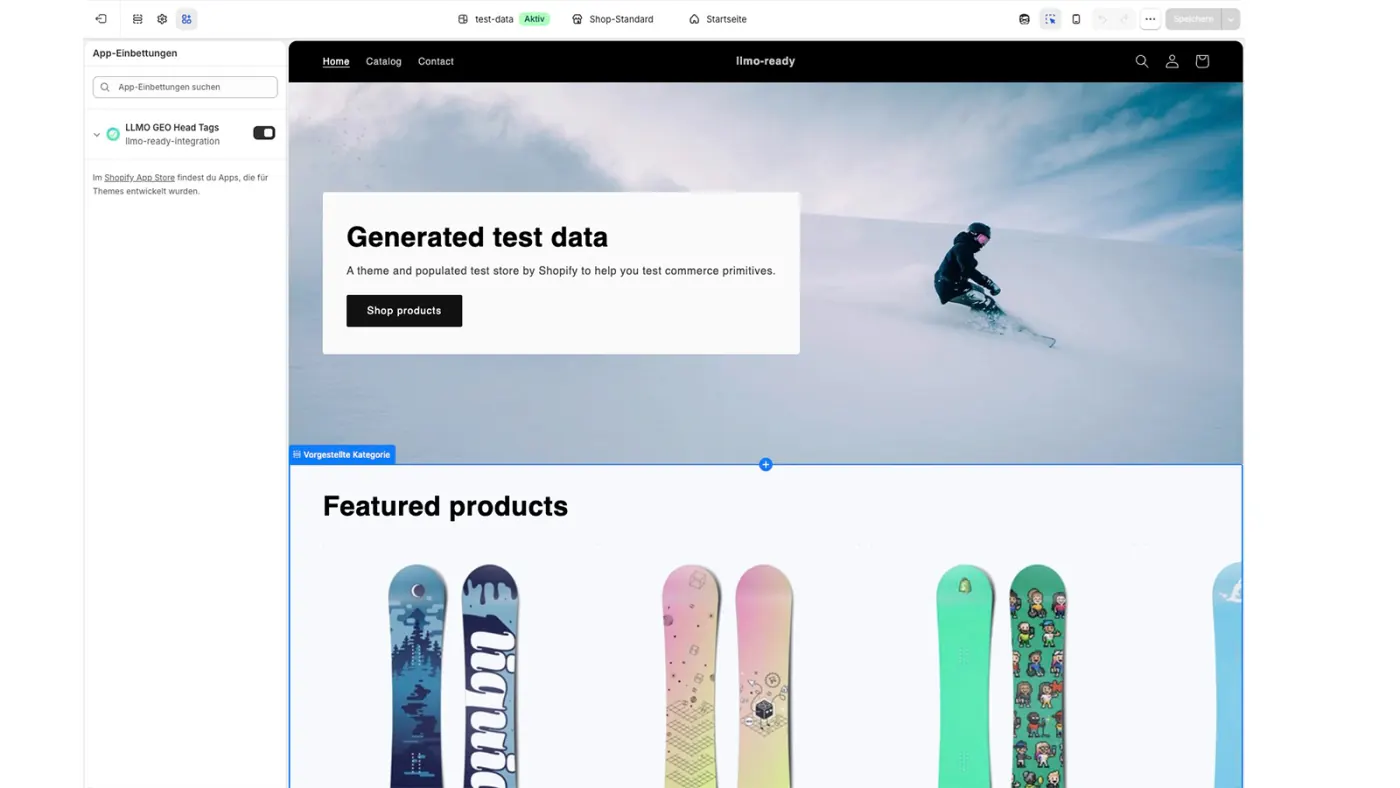
This is the most important step! Without the Theme Extension, no optimized tags will be inserted into your product pages.
Instructions:
- Go to Shopify Admin → Online Store → Themes
- Click Customize on your active theme
- Click App embeds (bottom left in sidebar)
- Find "LLMO GEO Head Tags"
- Enable the toggle switch
- Click Save
Libers Suite optimizes your products for AI search engines like ChatGPT, Perplexity, Claude, and Google SGE. We use Schema.org (GEO), Open Graph, and AI-optimized meta descriptions.
Step 4: Open the App. Your Dashboard
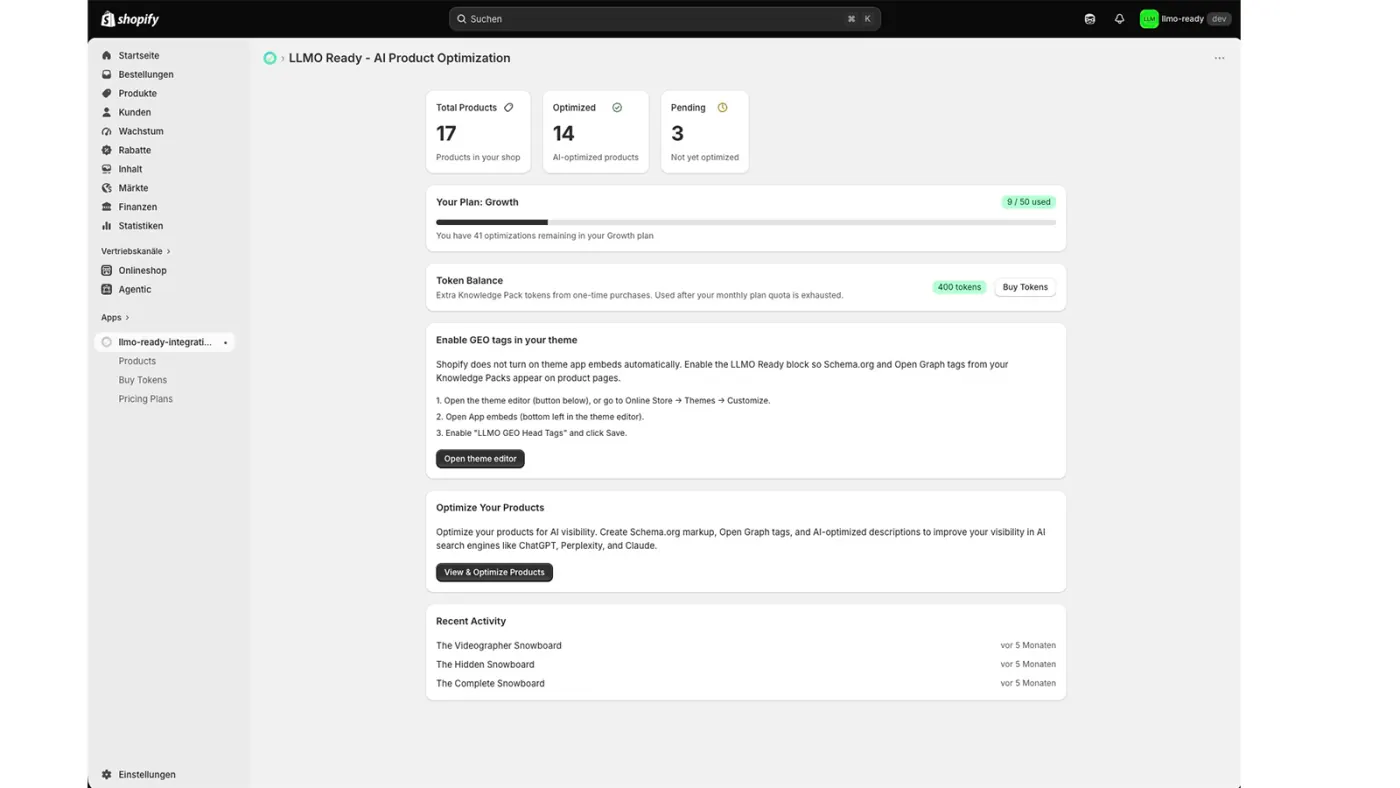
After installation, open LLMO Ready from the Shopify Admin sidebar. You land directly in the embedded app. No separate login. The dashboard shows product counts, optimization status, plan usage, and your token balance.
Step 5: Your Products Are Already Listed
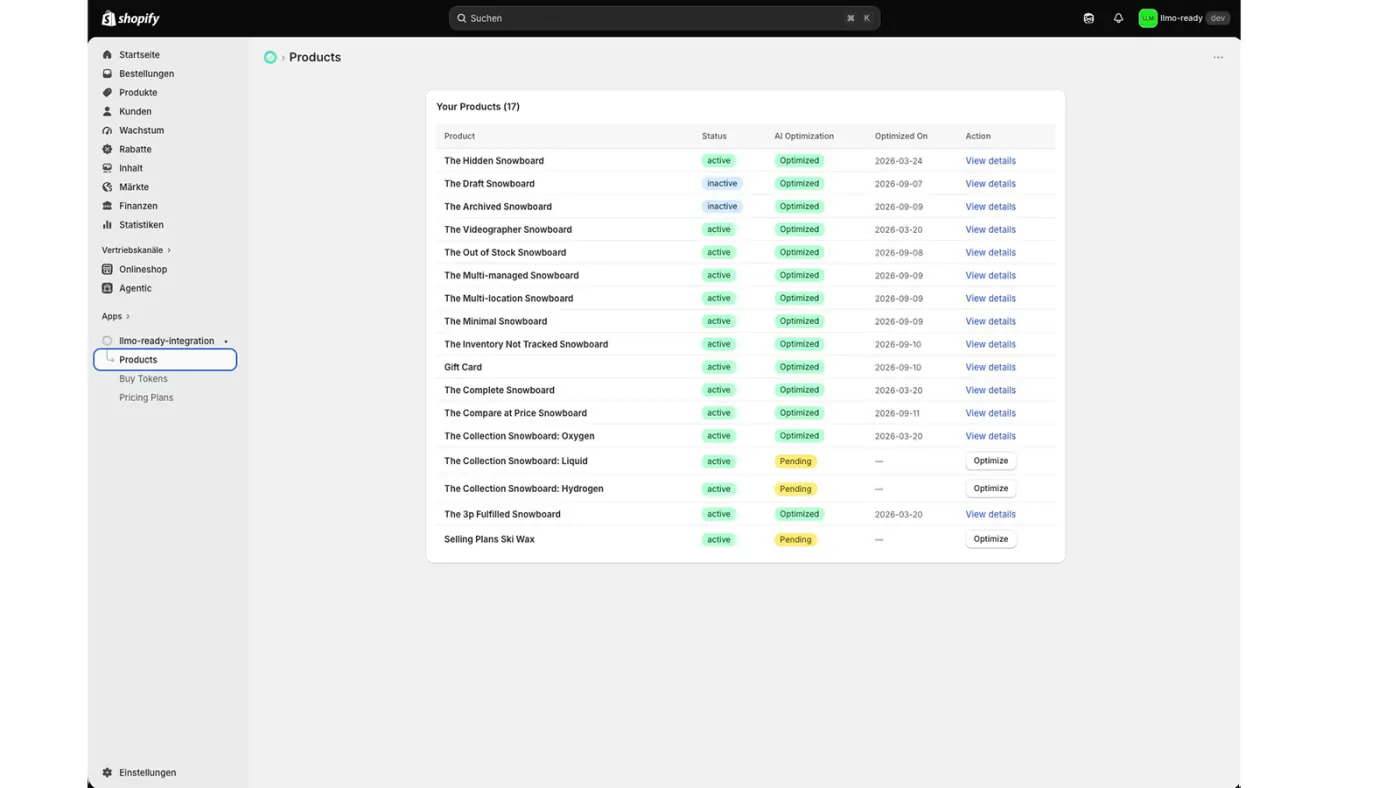
Open Products in the app. Your store products appear automatically. No import and no sync button. Each row shows whether a Knowledge Pack already exists or is still pending.
Step 6: Optimize a Product
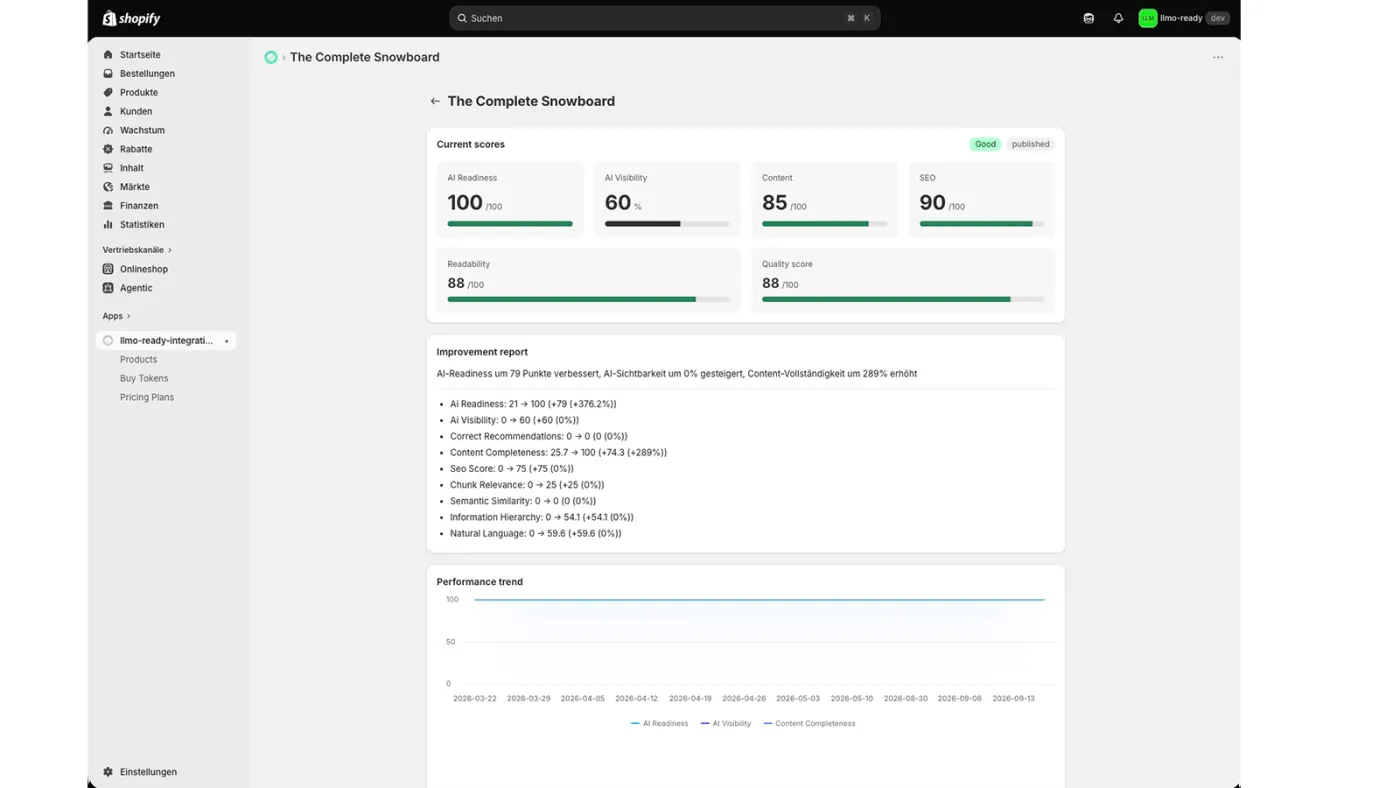
On a pending product, click Optimize. LLMO Ready creates a Knowledge Pack with AI Readiness, content, SEO, and quality scores. For connected Shopify stores the pack is published to product metafields automatically. There is no separate publish button.
What happens?
<head> of your product pagesStep 7: Manage Your Plan and Tokens
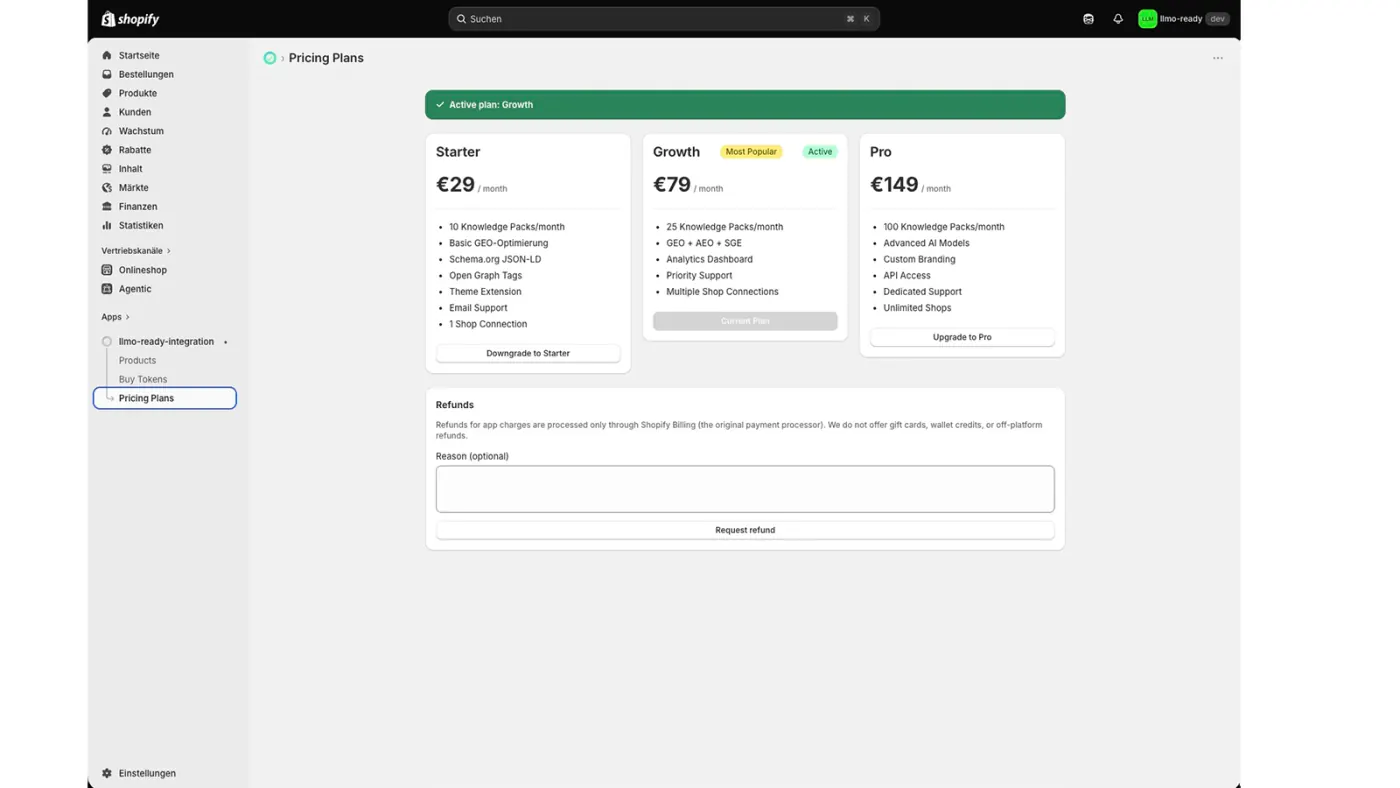
Plans and token packs are purchased inside the Shopify app via Shopify Billing. No Stripe checkout and no external payment page.
Pricing Plans
Open Pricing Plans to see your current plan (Starter, Growth, or Pro) and the included limits.
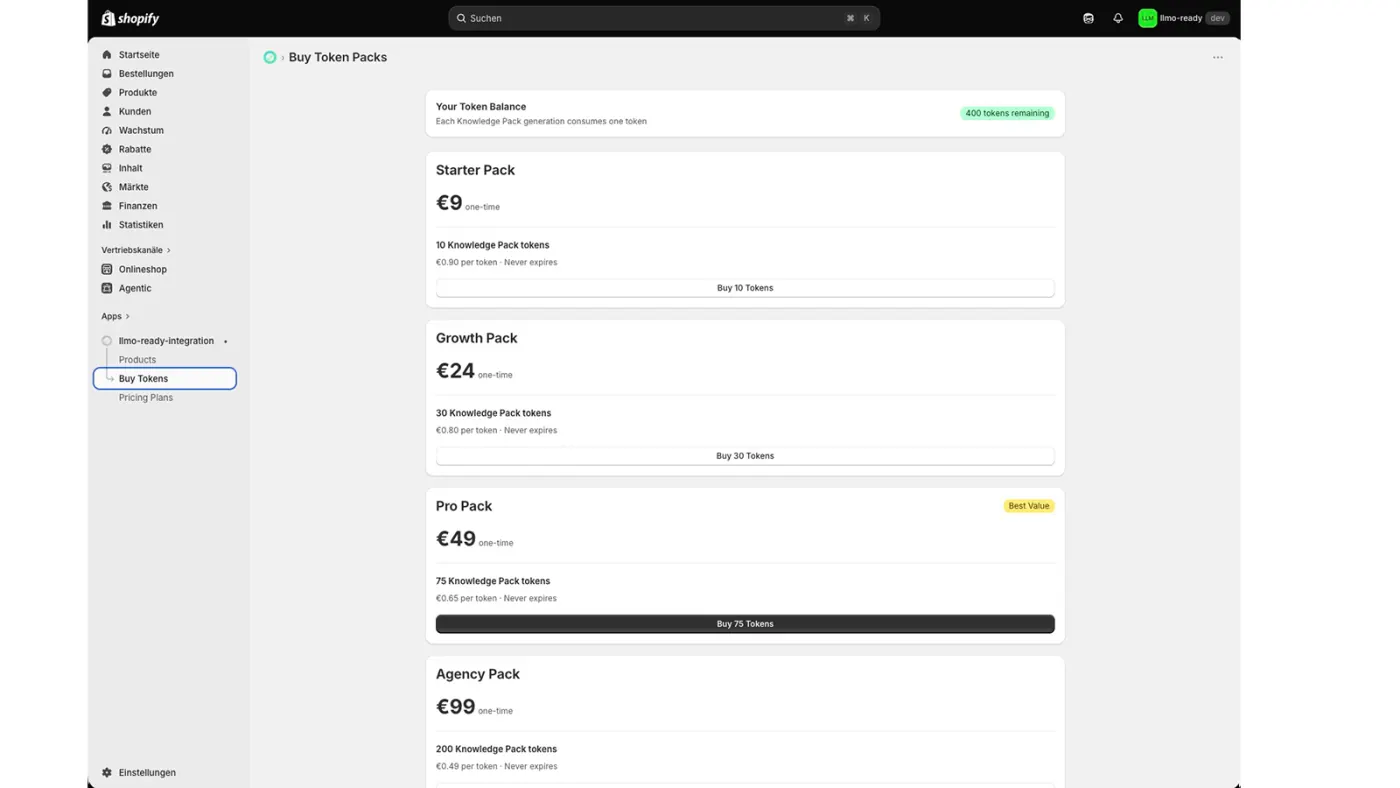
Buy Tokens
Need more Knowledge Packs? Buy token packs under Buy Tokens. Payment runs through Shopify Billing only.
Step 8: Verify in Source Code (Frontend)
Check if optimized tags were correctly inserted into your product pages' HTML.
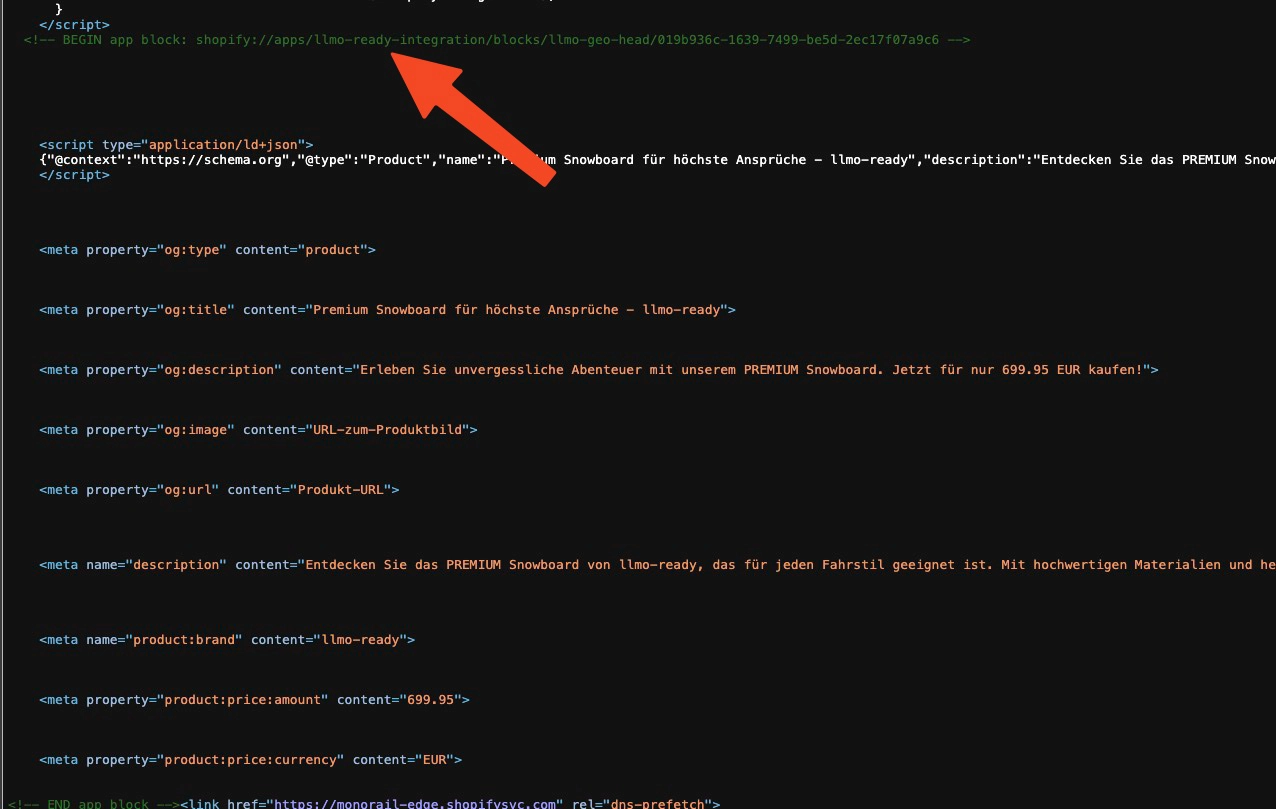
Expected Result in <head>:
<head>
  <!-- LLMO Ready GEO Tags -->
  <script type="application/ld+json">
  {
    "@context": "https://schema.org",
    "@type": "Product",
    "name": "Your Product Name",
    ...
  }
  </script>

  <meta property="og:title" content="...">
  <meta property="og:description" content="...">
  <meta name="description" content="...">
</head>- Theme Extension "LLMO GEO Head Tags" activated?
- Metafields present in Shopify?
- Browser cache cleared? (Cmd+Shift+R)
Done!
Your Shopify products are now optimized for AI search engines. ChatGPT, Perplexity, Claude, and Google SGE can better understand and recommend your products.